Start with just one line
You do not need to learn everything at once. Make a short story and learn as you go.
Start on mobile. Refine on a computer.
Mobile · AI drafts
Describe your story and characters in chat. Read the draft, request changes and preview it. Direct editing is available on desktop.
Desktop · Detailed editing
Sign in with the same account to continue a saved work. Edit scenes, dialogue, choices and branches, then customize character images, locations and dialogue UI.
First story: Generate → Apply → Save → Edit on desktop → Preview → Publish
Start an AI draftGetting Started
Try these three things first
Write a line, add a picture, and read it back.
Start a story with AI
Not sure how to begin? Describe your idea in chat, create a draft, and apply it to the editor when you are ready.
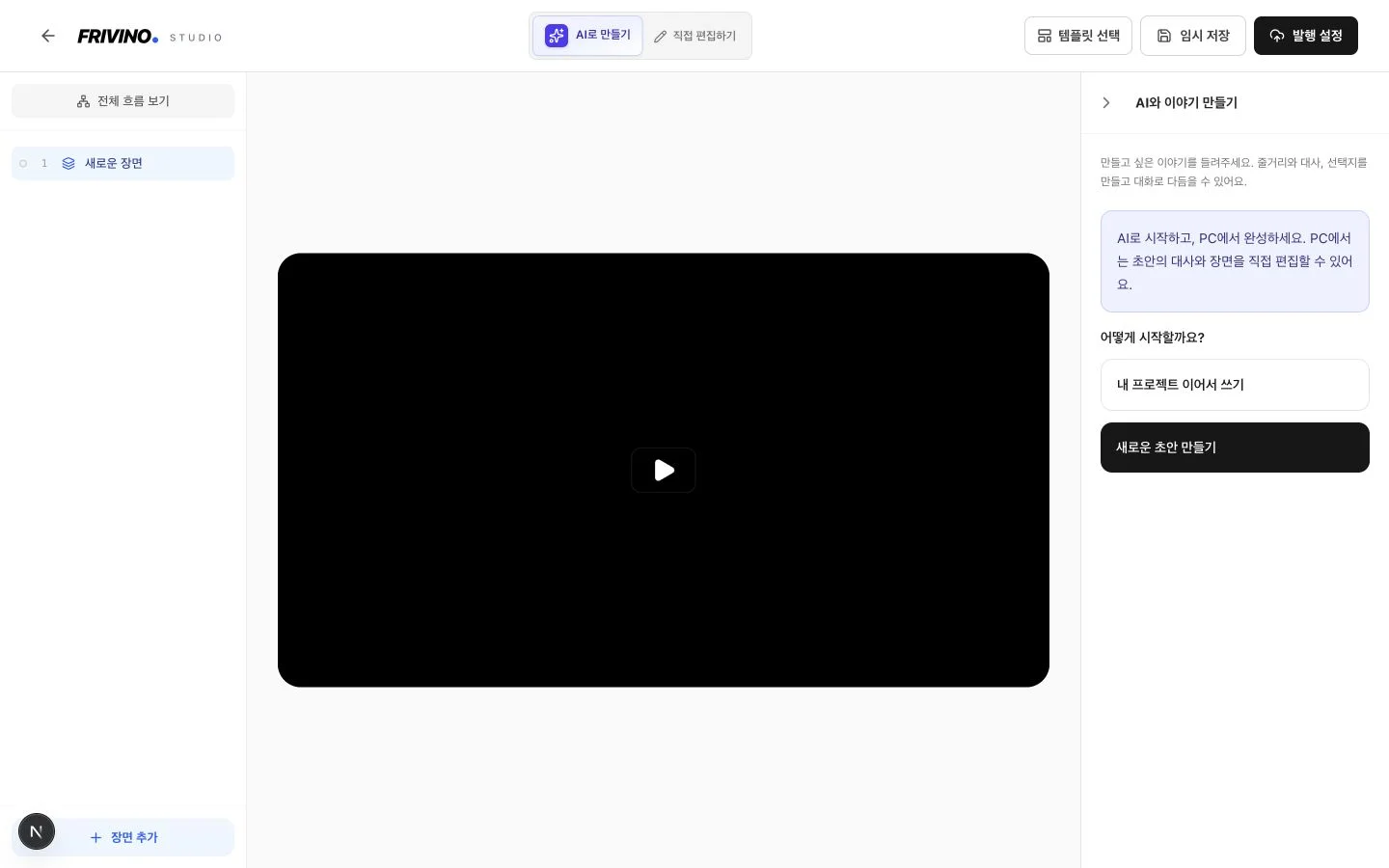
1. Start fresh or continue a project
Choose “Create a new draft” to start from scratch. Use “Continue my project” to select a saved work as a reference for the next episode. Importing a reference alone does not change the original work.
2. Describe your story and characters
Start with the genre, mood and plot. Then describe character names, personalities and relationships. Locations are optional.
3. Review your brief and generate
Read the summary and revise your answers if needed. Enable the reader-name option if you want readers to enter their own name. Generation starts when you press the generate button.
4. Expand the story and request changes
Expand the draft in chat or open Story to read scenes, dialogue and choices. Describe the changes you want in chat.
5. Apply, save and test
Apply the result to your current editor. On PC, switch to direct editing to refine the same dialogue and choice connections. Save your work with the draft-save button, test every branch in preview, then publish.
Remember the tabs this way
There is a place to write, a place to add pictures, and a place to style the screen. Start with one line in Scenario. You can switch tabs whenever you like.
Scenario = write the story
Add characters and locations, then write dialogue. Choose who speaks and where each line takes place.
Character / Location = choose pictures for each line
Choose how to show the characters and locations you assigned in Scenario.
UI Design = style the text and dialogue box
Change fonts and colors. Picking one theme is enough to get started.
Start a new story
Choose a template to get a sample story. Start with a short conversation and try changing its dialogue.
- Choose a title for your story.
- Pick a short conversation or branching endings template.
Write dialogue and choices
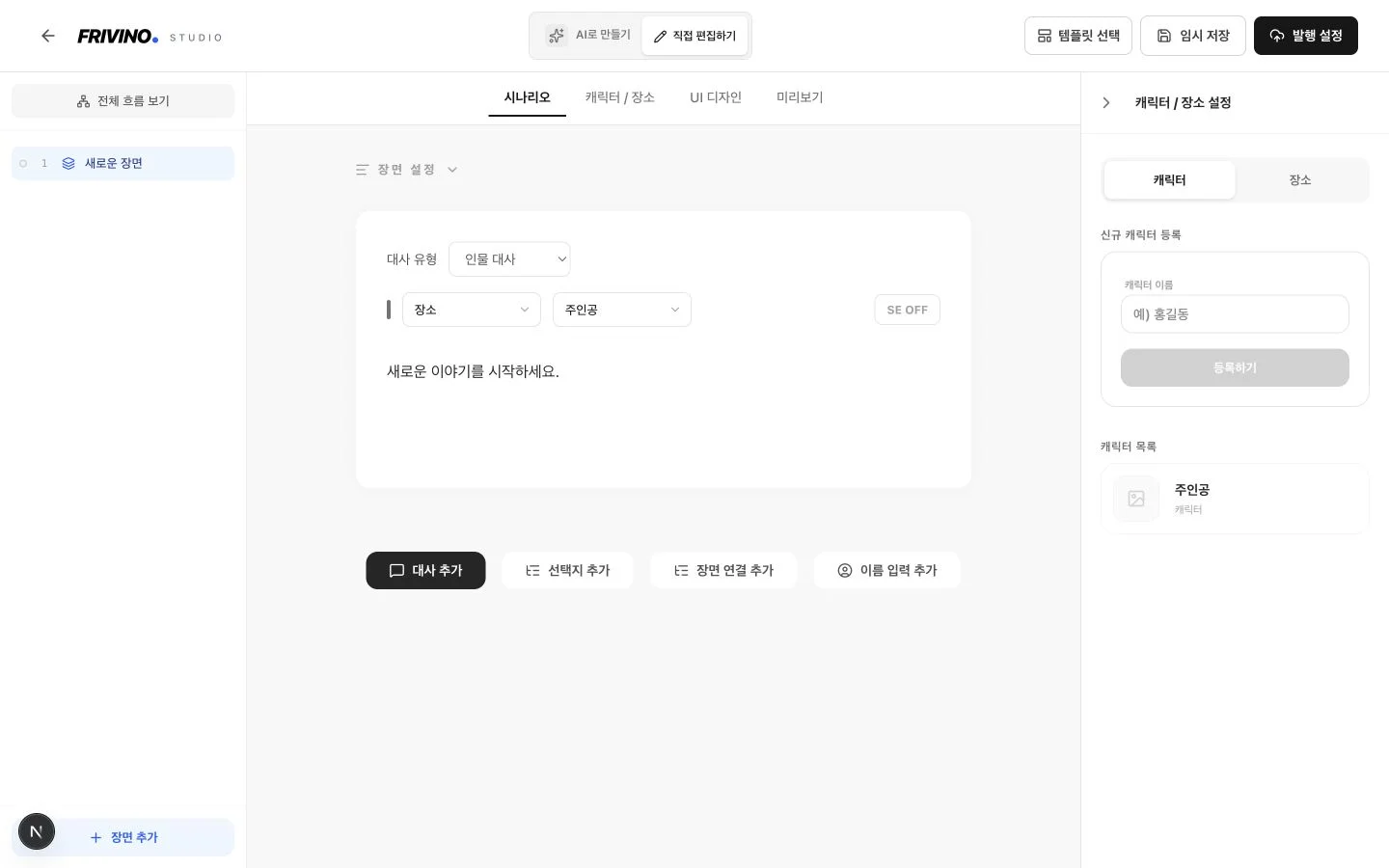
Scenario is where you write. Start with one line and choose who says it.
1. Choose a scene on the left
A scene is one part of your story, such as ‘Meeting a friend’. It can contain several lines of dialogue.
2. Write one line
Use Add Dialogue and enter “Hi! Want to go somewhere?” This dialogue item is called a block.
3. Add characters and locations
In Scenario, find Character / Location Settings on the right. Under Character, enter a name and register it. Then select Location and add a place for your story.
4. Assign them to the dialogue
Choose your new character under Speaker and your new place under Location in the dialogue block. Now you have decided who is speaking and where.
- Enter text in a dialogue block.
- Set a target scene for each choice.
- Use an input name block to collect the reader's name.
Choose character and background images for each line
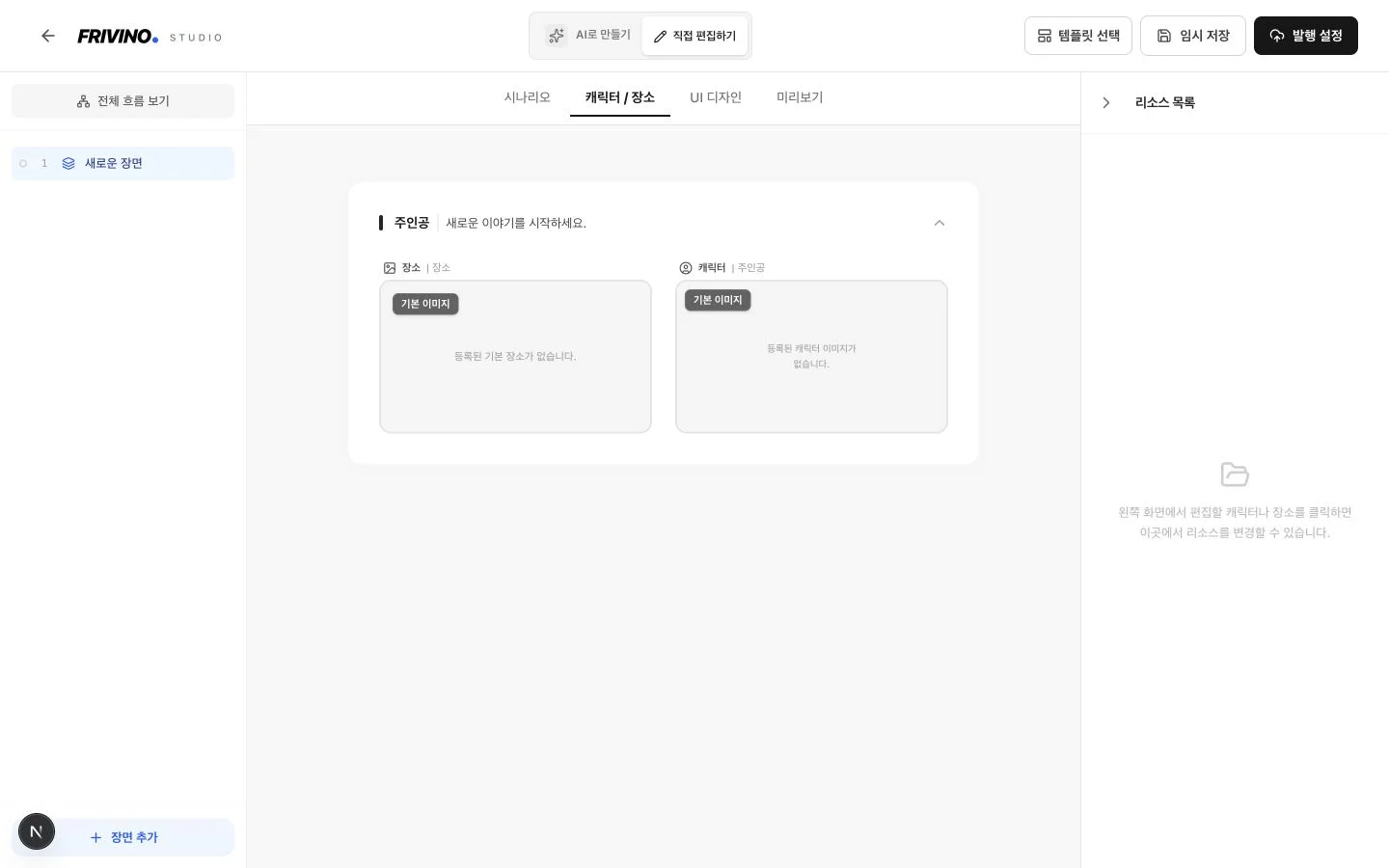
Once you have added characters and locations in Scenario, open Character / Location to choose the images shown for each line.
1. Prepare them in Scenario first
Add characters and locations in the Scenario tab. Assign them to your dialogue before opening Character / Location.
2. Choose the dialogue you want to change
Assign a character and location to the dialogue in Scenario. Open Character / Location, then click the character or background on screen to choose an image.
3. Try a different expression
Add another picture, such as a smiling face, and choose it for a line of dialogue. One default image is enough to start.
- Check that the dialogue has a character and location assigned.
- Choose the character and background images for that line.
Make the screen yours
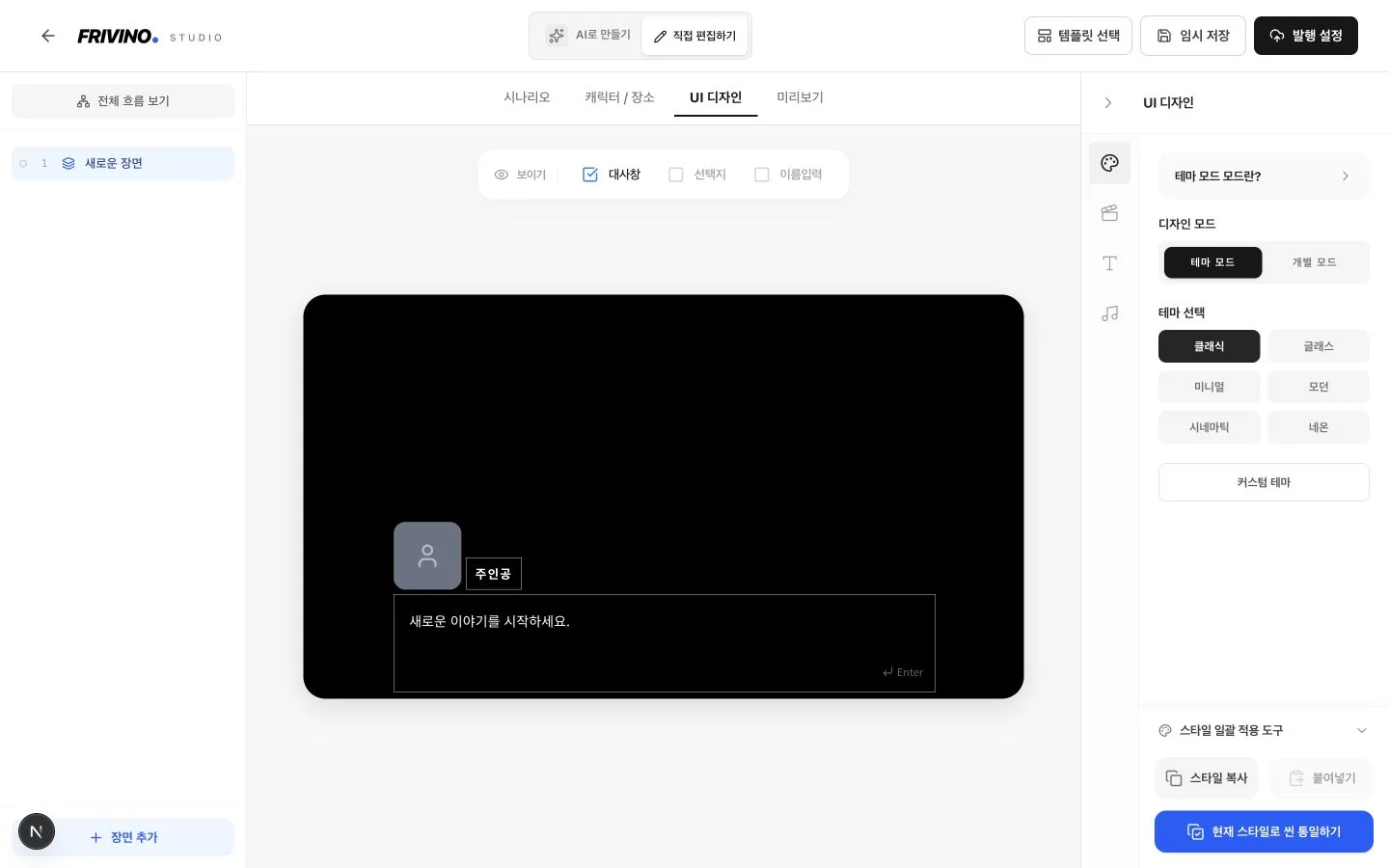
UI Design is where you style the text and dialogue box. Start by picking one theme.
1. Pick a theme you like
Open UI Design and pick a theme. See how the dialogue box and buttons change.
2. Make the text easy to read
Try a font or color. If the background makes the text hard to read, change the text or dialogue box color.
3. Check your other scenes
Use Apply to All if you want every scene to look the same. Check before using it: it changes the other scenes too.
- Set the overall mood with Theme mode.
- Use preview to check text and button readability.
Play from the beginning
Open Preview and read your story. Check that your words and pictures appear as expected.
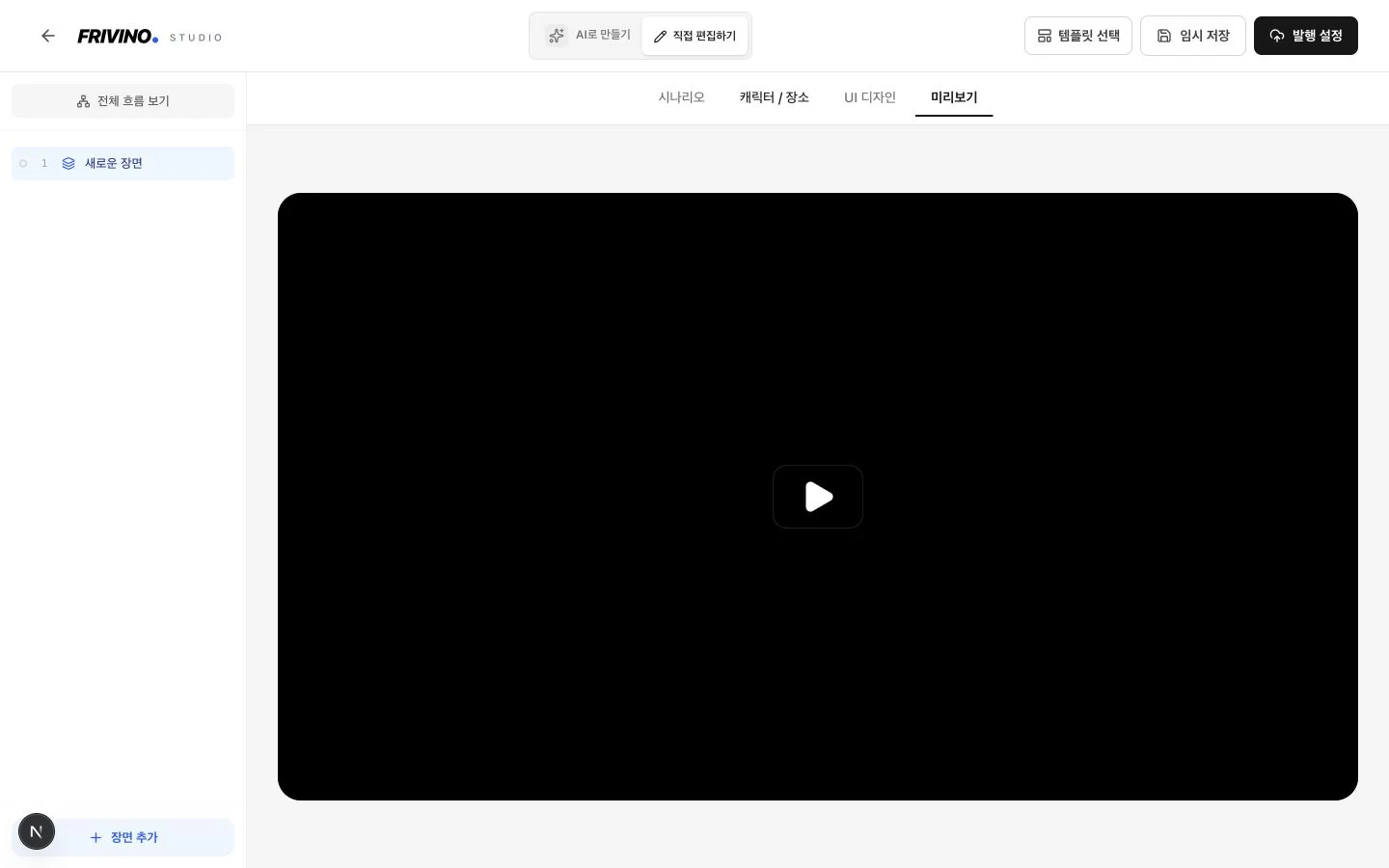
1. Read it like a reader
Advance the dialogue and click a choice. If there are two choices, restart and try the other one too.
2. Fix anything that looks wrong
Return to Scenario to fix words, Character / Location to change pictures, or UI Design to make the text easier to read.
- Press Enter to finish typing each line.
- Try every choice path once.
Save and publish
Use Save Draft when taking a break. Publish when you are ready to share.
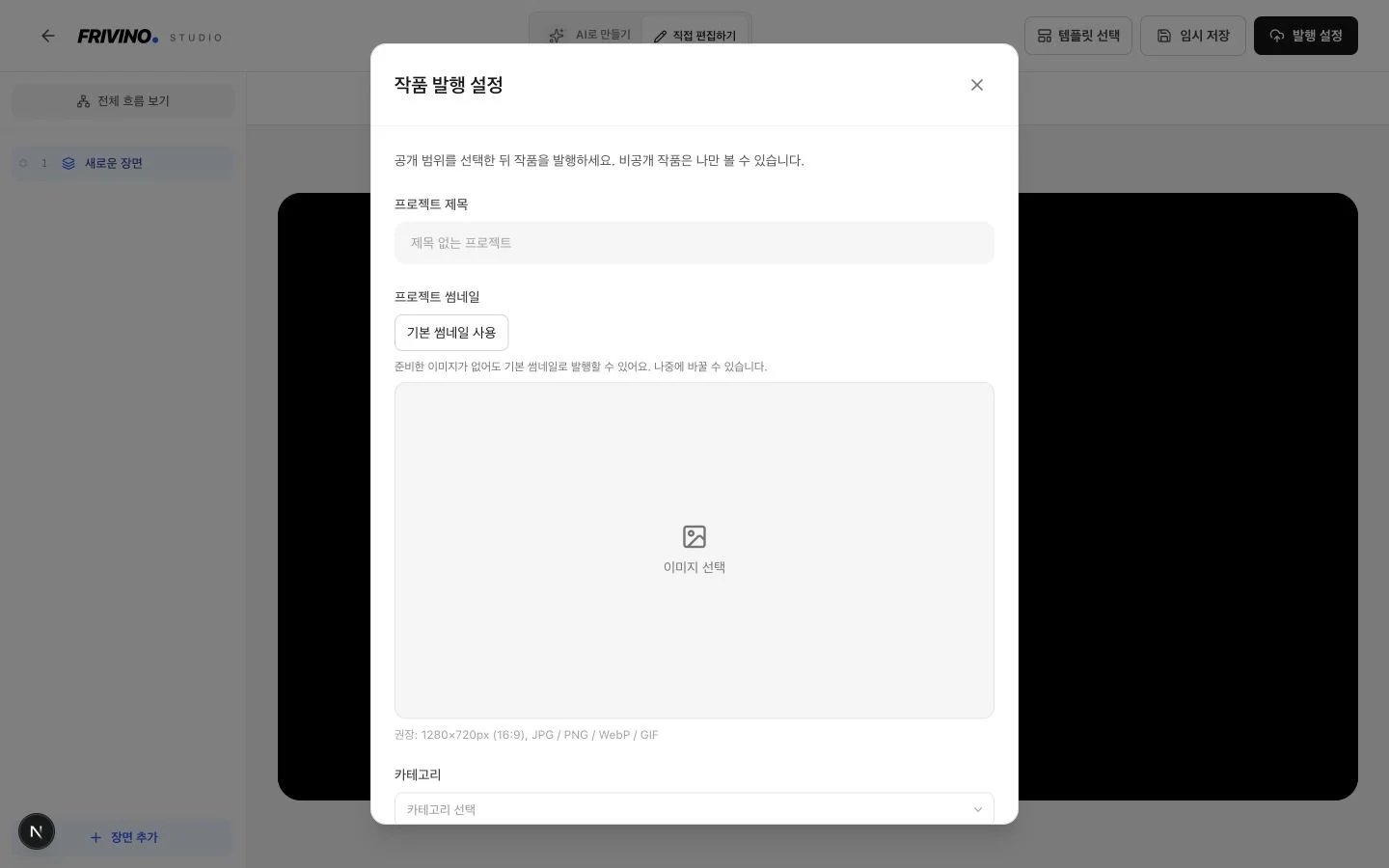
Still working? Use Save Draft
This keeps your work. Wait for the saved message. Saving a draft does not make the story public.
Finished? Open publishing settings
Choose a title and cover image. You can use the default cover. Choose public to share with everyone, or private to keep it for yourself, then publish.
- Fix any broken connections shown by the story check.
- Choose the default cover or upload your own image.
- After publishing, save updates from Update settings.
How do I let readers choose what happens?
Ask “Library or park?” and show the story for the place the reader chooses. These different paths are called branches.
Choose ‘Go to the library’ → Library story → Wrap-up
Choose ‘Go to the park’ → Park story → Wrap-up
- Create four scenes named Meeting, Library, Park, and Wrap-up. Put Wrap-up last in the scene list.
- In Meeting, write “Where shall we go?” Add a choice block after that line.
- Write ‘Go to the library’ for one choice and choose Library as its target scene.
- Write ‘Go to the park’ for the other choice and choose Park as its target scene.
- Add dialogue to Library and Park. At the end of each, add a scene connection block and choose Wrap-up. This sends readers there without asking another question.
- In Wrap-up, write “That was fun!” Open Preview and try each choice. You are done!
Why connect both places to Wrap-up?
Without a connection, the story continues to the next scene in the list. Readers who choose Library might see Park too. The connections send both routes straight to Wrap-up.
Does naming a scene ‘Ending’ stop the story?
No. Unless it is the last scene, the story continues to the next one. Put your closing scene last, as in this example.